
Set up the Telegram Bot API
Before you can launch a Telegram Mini App, you need a bot to serve as its entry point. Telegram treats Mini Apps as web interfaces embedded within the Telegram client, but they require a bot to trigger and manage the session. You will create this bot using the official BotFather tool, which handles the core API authentication.
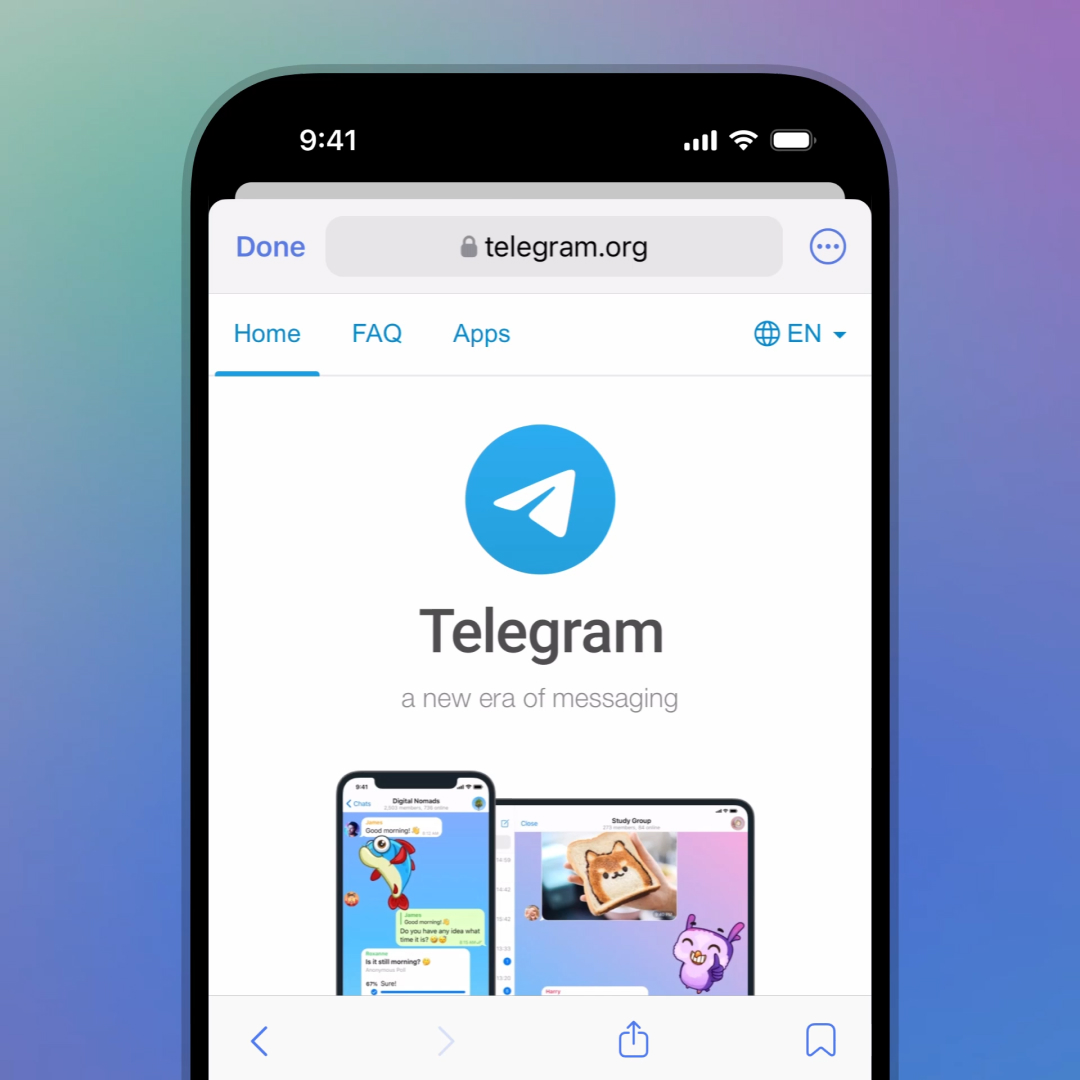
Open Telegram and search for @BotFather. Send the command /newbot to start the setup process. BotFather will ask for a display name for your app, followed by a unique username. This username must end in 'bot' and will serve as your bot's identifier. Once created, BotFather provides an HTTP Bot API token. Store this token securely, as it authenticates your backend with Telegram's servers.
A Mini App often requires specific interactions. Use /setdescription to provide clear instructions on what the app does, which helps users understand its purpose before launching. If your app offers specific actions, use /setcommands to define a list of commands. These commands appear in a popup menu when users type '/' in the chat, providing a direct way to open your Mini App.
Telegram requires explicit permission to run web apps within your bot. Send the command /newapp to BotFather. You will need to provide a title, a short description, and a direct URL to your deployed Mini App. Telegram validates this URL to ensure it is accessible and secure. Once configured, the app becomes available via the bot's interface.
Finally, test the integration. Open your bot in Telegram and use the command or button you configured. The Mini App should open in a bottom sheet within the chat window. If it does not load, check your console for CORS errors or ensure your HTTPS certificate is valid. Telegram Mini Apps are strictly served over HTTPS.
Initialize the Web App SDK
To let your web interface talk to the Telegram client, you must load the official Web App SDK. This script bridges the gap between your HTML/JS code and the Telegram app environment, enabling features like theme synchronization, header color changes, and haptic feedback.
You can add the SDK directly to your HTML file or import it as a module. The script loads asynchronously to avoid blocking your app’s initial render. Once loaded, it exposes the window.Telegram.WebApp object, which you will use to configure the experience.
<script src="https://telegram.org/js/telegram-web-app.js"></script>
Configure the App
After loading the script, call init() to verify the environment is ready. Then, expand the app to full screen to remove browser chrome and give your game or utility maximum visibility. This step is critical for maintaining a native feel within the Telegram client.
const tg = window.Telegram.WebApp;

tg.init();
tg.expand();
Sync with Telegram Settings
Telegram users often customize their app themes. By default, your web app might not match these preferences. Use the onEvent method to listen for theme changes, ensuring your UI updates dynamically. This keeps your app looking consistent whether the user is in light or dark mode.
tg.onEvent('themeChanged', function() {
  document.body.style.backgroundColor = tg.themeParams.bg_color;
});
By following these steps, you establish a reliable communication channel. Your Mini App can now send data to Telegram, request user information, and adjust its appearance based on the user's device settings. This foundation is required before integrating any Web3 or game-specific logic.
Integrate TON Blockchain Wallet
Connecting your Mini App to the TON blockchain unlocks Web3 capabilities like asset transfers, NFT interactions, and crypto payments. This integration allows users to sign transactions directly within the Telegram interface without leaving the app.
To begin, you must install the official TON Connect SDK. This library handles the complex handshake between your Mini App and the user's TON wallet. It manages connection states, session persistence, and transaction formatting.
Run the package manager command to add the SDK to your project. This installs the necessary TypeScript definitions and runtime code required for blockchain interaction.
npm install @tonconnect/ui-react
Wrap your Mini App's root component with the TonConnectUIProvider. Pass your app's public URL and a manifest file that describes your app to the wallet. This manifest is critical for security, as it tells the wallet which app is requesting access.
import { TonConnectUIProvider } from '@tonconnect/ui-react';

function App() {
  return (
    <TonConnectUIProvider manifestUrl="https://your-app.com/tonconnect-manifest.json">
      {/* Your Mini App Content */}
    </TonConnectUIProvider>
  );
}
Use the TonConnectButton component to let users initiate the wallet connection. This button automatically handles the QR code or deep link flow depending on the device. It shows the connected wallet's balance and address when active.
import { TonConnectButton } from '@tonconnect/ui-react';

function ConnectSection() {
  return <TonConnectButton />;
}
Once connected, use the tonConnectUI.sendTransaction method to request signed transactions from the user. Define the transaction details, including the amount, destination address, and payload. The wallet will display these details for user confirmation before signing.
import { useTonConnectUI } from '@tonconnect/ui-react';

function TransferAction() {
  const [tonConnectUI] = useTonConnectUI();

  const handleSend = () => {
    tonConnectUI.sendTransaction({
      validUntil: Math.floor(Date.now() / 1000) + 60,
      messages: [
        {
          address: '0:...',
          amount: '1000000000',
        },
      ],
    });
  };

  return <button onClick={handleSend}>Send TON</button>;
}
By following these steps, you establish a secure bridge between your Mini App and the TON network. Users can now interact with Web3 features seamlessly, enhancing the utility of your application within the Telegram ecosystem.
Design for the Telegram Interface
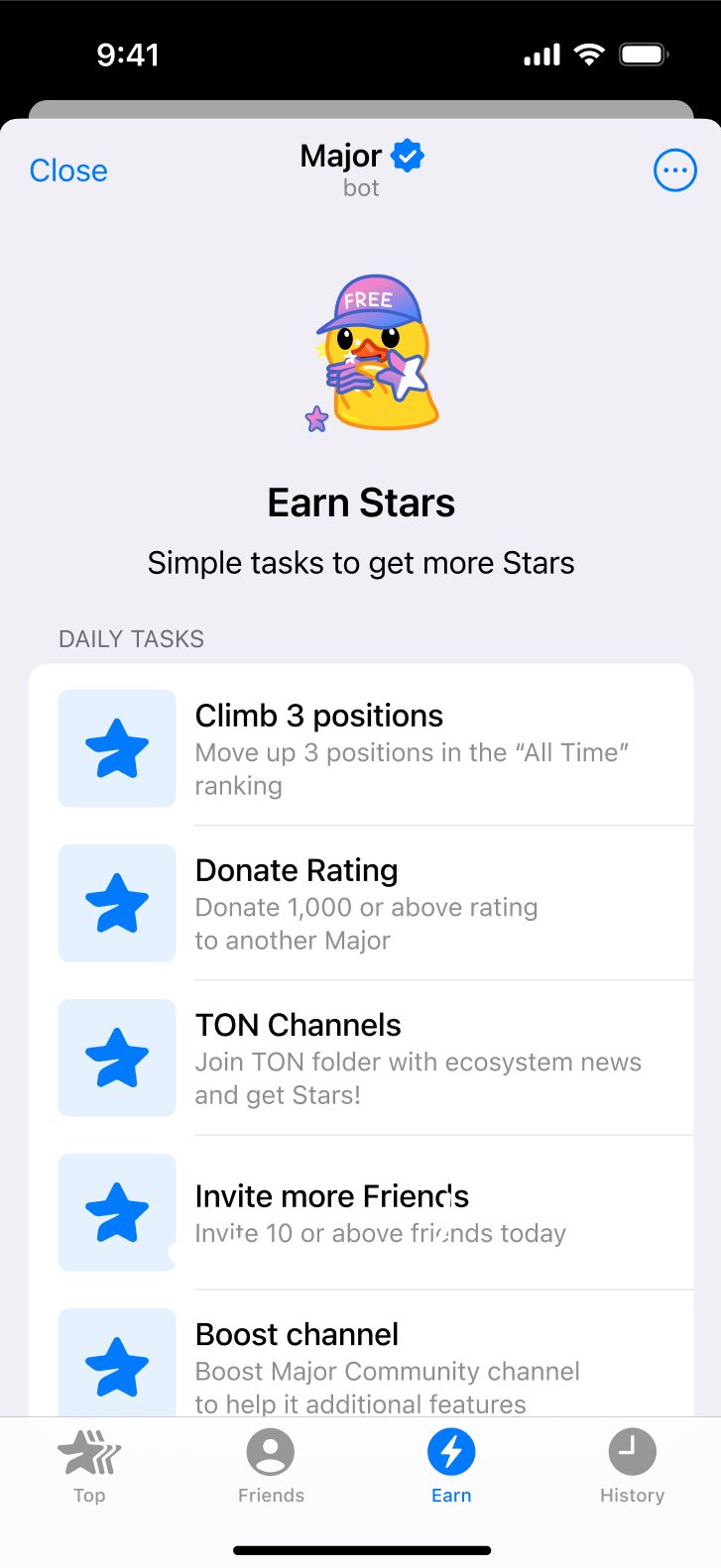
Your mini-app lives inside Telegram’s ecosystem, not on the open web. To feel native, your UI must respect Telegram’s design language. This means adopting the platform’s color palette, typography, and layout constraints. When users switch between light and dark modes, your app should adapt instantly without jarring visual shifts.
Start by integrating the Telegram Web Apps SDK. This script provides access to the Telegram.WebApp object, which exposes theme parameters and viewport settings. Use these parameters to set your CSS variables. For example, map var(--tg-theme-bg-color) to your background and var(--tg-theme-text-color) to your text. This ensures your app matches the user’s current Telegram theme automatically.
Pay close attention to safe areas. Mobile devices have notches, home indicators, and status bars that can obscure content. Telegram provides safe area insets through the SDK. Use CSS env(safe-area-inset-top) and env(safe-area-inset-bottom) to pad your layout. This prevents buttons from being tapped accidentally or text from being cut off.
Keep interactions minimal. Telegram users expect quick, gesture-driven experiences. Avoid complex navigation menus. Instead, use the native header and bottom bar provided by the SDK. These elements are already styled to match Telegram’s UI. If you need to trigger actions, use the MainButton and BackButton components. They provide tactile feedback and consistent behavior across iOS and Android.
Test your app on both platforms. Telegram’s rendering engine differs slightly between iOS and Android. Check for alignment issues, font scaling, and touch target sizes. A button that looks perfect on one device might be too small on another. Adjust your CSS grid or flexbox layouts to accommodate these differences.
Test on Real Devices
Before you open the floodgates, you need to verify that your Telegram mini app behaves correctly across the fragmented ecosystem of clients and operating systems. A build that runs perfectly in the desktop webview often breaks on iOS due to strict memory limits or Android-specific keyboard handling. Treat this phase as a stress test for your specific deployment targets, not just a final visual check.
Start by launching the mini app directly within the Telegram desktop client to verify initial load times and basic navigation. Then, move to mobile. Install the official Telegram app on both an Android device and an iPhone. Test the full user journey: opening the app, interacting with Web3 wallet connections, and handling any in-app transactions. Pay close attention to how the keyboard pushes up the content on Android versus the native sheet behavior on iOS.

Don't neglect the various launch entry points. Telegram supports seven different ways to trigger a mini app, including profile buttons, keyboard buttons, and inline buttons. Ensure your app handles deep links correctly regardless of how the user arrives. If your app relies on specific Telegram API features, verify those integrations work in the least capable client version your target audience might use.
Common Mini App Pitfalls
Even with Telegram’s generous distribution, small oversights can break the user experience. Here are the most frequent errors and how to avoid them.
Ignoring Safe Areas
Telegram’s interface includes dynamic elements like the bottom menu bar and top header. If your app doesn’t account for these, buttons may be unclickable or text hidden. Use the viewport-fit=cover meta tag and CSS env(safe-area-inset-bottom) to ensure content stays within the visible zone. This prevents your app from feeling cramped or broken on different devices.
Mishandling WebView Limits
Telegram Mini Apps run inside a WebView, which has memory and performance constraints. Loading heavy assets or running complex animations can cause crashes or sluggishness. Keep your initial load bundle small and defer non-essential scripts. Test on low-end Android devices, where memory is often the bottleneck.
Poor Network Degradation
Users often open Mini Apps in areas with weak connectivity. If your app fails completely when the network drops, users will leave. Implement graceful degradation: cache essential data locally and show offline placeholders instead of error screens.
Skipping Deep Linking
Telegram Mini Apps can be launched from anywhere in the app, including chats and channels. If you don’t support deep linking with parameters, users can’t return to the exact state they left. Use the startattach or startgroup parameters to pass context, ensuring a seamless return journey.
Neglecting Telegram UI Guidelines
Telegram provides a JavaScript SDK that mimics native UI components. Using standard HTML buttons and inputs can make your app feel out of place. Integrate the Telegram.WebApp SDK to match the platform’s aesthetic and behavior, reducing cognitive load for users.
Forgetting to Handle Back Button
On Android, the system back button should close the Mini App or navigate back within the app. If you don’t handle this, users get stuck. Listen for the backbutton event in the Telegram SDK and prevent default behavior only when you’re managing internal navigation.
No comments yet. Be the first to share your thoughts!