
Set up the BotFather environment
Before writing code, create a bot instance to host your Mini App. Telegram treats Mini Apps as extensions of a bot, so you must start with BotFather, the platform's official management tool.
1. Create a new bot
Open Telegram and search for @BotFather. Send the /newbot command. You will be prompted for a display name (public name) and a username (must end in bot).
Once created, BotFather provides an API Token. Store this securely; anyone with this token controls your bot.
2. Configure the menu button
Mini Apps launch from buttons in the bot interface. Send /newapp to BotFather and select your bot. Provide:
- Title: Short name for the Mini App.
- Description: User-facing text.
- Web App URL: HTTPS link to your hosted frontend. Telegram requires valid HTTPS certificates.
3. Verify the connection
BotFather sends a direct test link. Click it to ensure the app loads in the Telegram client. If it fails, check your HTTPS certificate and CORS settings.
Search for @BotFather in Telegram and start a chat. This is the central hub for all bot and Mini App configurations.
Send /newbot and follow the prompts to set a display name and a unique username ending in 'bot'. Save the API token provided.
Send /newapp, select your bot, and provide the title, description, and your HTTPS web app URL. This links your frontend to the bot instance.
Initialize the web app framework
Create a standard web application that communicates with the Telegram client. This requires a web server and the Telegram Web Apps SDK.
1. Set up the project structure
Create a directory for your project. A simple static site is sufficient for this initial setup. Create an index.html file in the root directory as the entry point.
2. Add the Telegram SDK
The Telegram Web Apps SDK is a JavaScript library that allows your web app to interact with the Telegram client. It provides methods to access user data, handle theme changes, and manage the main button. Add the following script tag to the <head> section of your index.html file:
<script src="https://telegram.org/js/telegram-web-app.js"></script>
This script loads the SDK and makes the window.Telegram.WebApp object available. No additional installation steps are required for this basic integration.
3. Initialize the Web App
Once the SDK is loaded, tell Telegram that your web page is ready. Add the following code to your index.html file, preferably within a <script> tag at the end of the <body>:
if (window.Telegram && window.Telegram.WebApp) {
  window.Telegram.WebApp.ready();
  window.Telegram.WebApp.expand();
}
The ready() method informs Telegram that the content is loaded and safe to display. The expand() method ensures the app takes up the full available height of the screen, providing a native-like experience. Without this step, the app may appear as a small, constrained window.
4. Verify the setup
Add basic HTML content to index.html, such as a heading or button. Open your Telegram client and use BotFather to link your web app URL to a menu button. Click the button to verify the app loads inside Telegram.
For detailed initialization methods, refer to the official Telegram Mini Apps documentation.
Design for the mobile interface
Your Telegram Mini App lives inside a browser view but must feel like a native part of the messenger. If your interface looks like a generic website, users will feel friction. Match Telegram’s visual language so the app feels installed, not loaded.
Import the official Telegram Web Apps SDK to access native UI components and theme parameters. Using these components ensures your app automatically adapts to the user’s active theme—light mode, dark mode, or custom accent color—without manual CSS overrides.
The SDK includes pre-built UI elements that mirror the messenger’s style. Use these for common interactions:
- Headers and footers: Use built-in layout structures to keep content aligned with native scroll behavior.
- Buttons: Style primary actions with the
primaryButtonclass to match standard Telegram action buttons. - Back buttons: Implement native back button behavior using the SDK’s history API for seamless navigation.
Relying on these native components reduces cognitive load. Users already know how Telegram works, which is critical for retention in finance and market apps where trust drives engagement.
Deploy and test the application
Host your frontend on a secure server and configure BotFather to recognize the web interface. The deployment process relies on a URL exchange: you provide a direct link to your hosted app, and Telegram wraps it in a native overlay.
1. Host the frontend securely
Telegram Mini Apps must be served over HTTPS. This is a hard requirement because the app runs inside an iframe within the Telegram client. Use any static hosting provider (Vercel, Netlify, GitHub Pages) or a dedicated server. Ensure your domain is accessible and the SSL certificate is valid.
2. Register the Mini App with BotFather
Open Telegram and search for @BotFather. Send /newapp to start the setup process. BotFather will guide you through naming the app and selecting the bot. Paste the HTTPS link to your hosted frontend when prompted. This link becomes the entry point for users.
In BotFather, type /newapp. Follow the prompts to give your Mini App a name and description. Select the existing bot or create a new one to link it to.
Enter the direct HTTPS URL where your frontend is hosted. Telegram will verify the connection. Once accepted, BotFather provides a short link (e.g., t.me/bot/appname) for testing.
Click the short link provided by BotFather. The Mini App opens in a native popup within Telegram. Check that the layout renders correctly on mobile and that the Telegram WebApp API initializes.
3. Debug using Telegram’s developer tools
If the app fails to load, use Telegram’s built-in debugging features. On desktop, open browser developer tools (F12) while the Mini App is open to inspect console logs and network requests. On mobile, enable developer mode in Telegram settings to view crash logs.
4. Validate user interaction
Ensure the Telegram WebApp API is correctly initialized. Test primary actions like opening the app from a keyboard or inline button. Verify that user data (like initData) is passed correctly to your backend for authentication.
Once the app passes these checks, it is ready for public distribution. Share the short link or embed the Mini App in your bot’s menu.
Monetize through crypto or ads
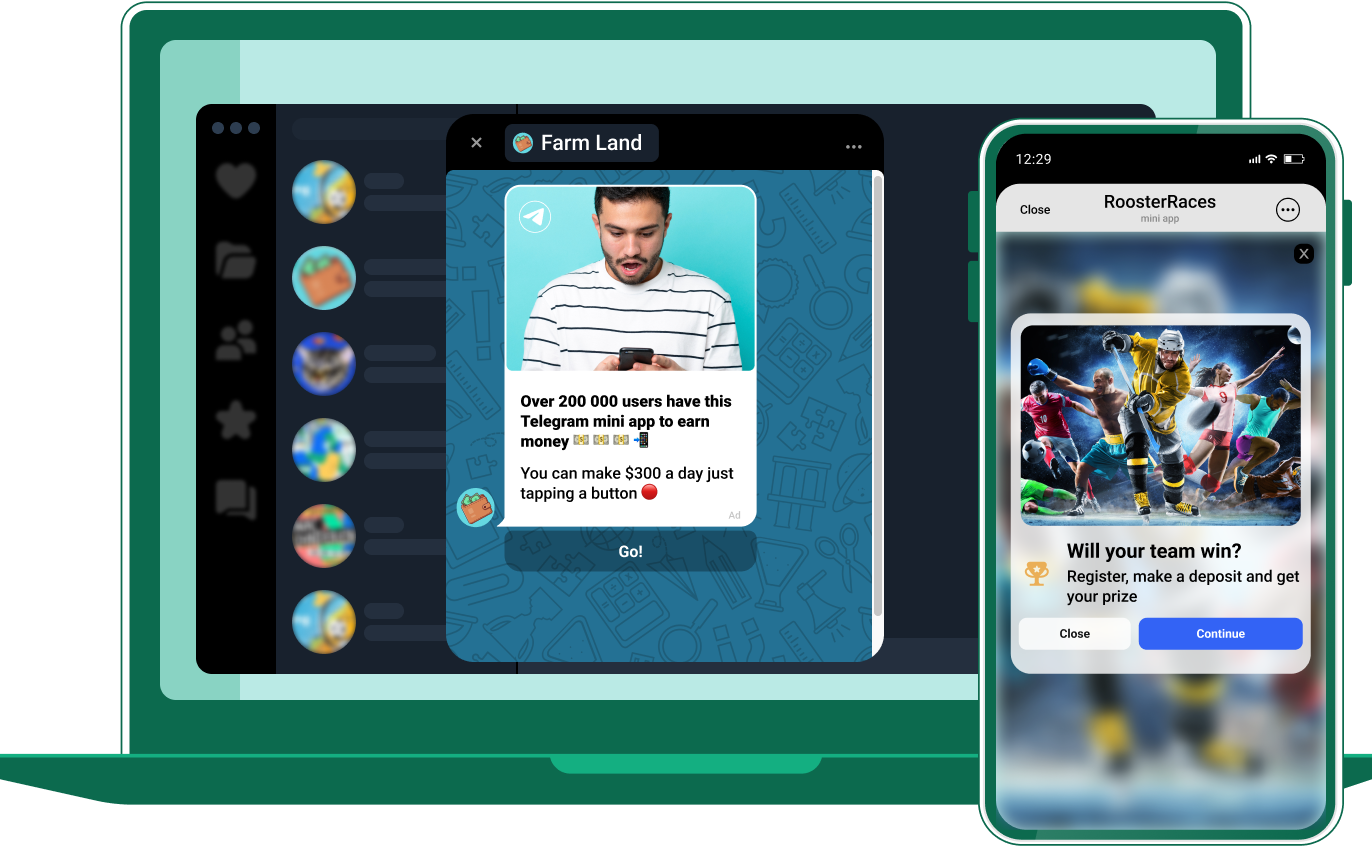
Generate revenue from your Telegram Mini App by integrating TON blockchain payments or leveraging traditional ad networks. The choice depends on your audience and whether you are selling digital goods or relying on volume.
TON blockchain integration
TON Connect allows users to pay for subscriptions, in-app purchases, or premium features directly within the app using their TON wallet. This method is ideal for Web3-native audiences or apps selling digital assets. It reduces friction for crypto-savvy users and eliminates traditional payment gateway fees.
Integrate the TON Connect SDK into your frontend to enable secure wallet connection and transaction signing. Handle transaction confirmations and errors gracefully to maintain a smooth user experience.
Ad network integration
For apps with high daily active users (DAU) but lower direct monetization potential, ad networks like PropellerAds offer a reliable alternative. Display banner ads, interstitials, or rewarded videos. Rewarded ads are particularly effective in gaming mini apps, where users voluntarily watch ads for in-game currency.
Ad networks typically require a minimum traffic threshold before approval. They handle ad serving and payment collection, allowing you to focus on user acquisition. Revenue is usually paid on a CPM (cost per mille) or CPC (cost per click) basis.
Comparison: TON vs. Ads
The table below compares the two approaches across key operational metrics.
| Metric | TON Payments | Ad Networks |
|---|---|---|
| Revenue Model | Direct sales & subscriptions | CPM / CPC impressions |
| User Friction | Requires crypto wallet | Zero friction (passive) |
| Approval Process | Self-hosted, instant | Network review required |
| Best For | Web3, gaming, digital goods | High-traffic, utility apps |
Choose TON if your app sells value directly to engaged users. Choose ads if your goal is to monetize passive usage at scale.
Common launch mistakes to avoid
Shipping a Telegram Mini App with hidden bugs or performance issues is the fastest way to kill retention. Users expect instant load times and smooth interactions within the Telegram environment. If your app feels sluggish or breaks on launch, users will simply close the window and never return.
Ignoring loading speed and initial render
Telegram Mini Apps are web apps running inside a messenger. Users expect near-instant feedback. A slow initial load or a frozen screen during the first interaction signals a low-quality product. Optimize your bundle size, lazy-load non-critical assets, and ensure the first screen renders within 1-2 seconds. Test on low-end Android devices, as they represent a significant portion of Telegram's user base.
Skipping official platform guidelines
Telegram enforces specific design and functionality guidelines for Mini Apps. Ignoring these can lead to rejection from official directories or poor integration with the native Telegram UI. Adhere to the Telegram Web Apps SDK standards for button placement, navigation, and theme handling. Ensure your app respects the user's theme preferences and uses the correct safe areas for navigation bars.
Neglecting mobile-first testing
Telegram is primarily a mobile-first platform. Designing for desktop and then scaling down often results in cramped interfaces and unclickable targets. Test your Mini App extensively on both iOS and Android devices within the Telegram app. Check for touch target sizes, keyboard overlaps, and gesture conflicts. A desktop-centric design will feel alien and difficult to use in a mobile messenger.

No comments yet. Be the first to share your thoughts!