
Set up the development environment
Before writing code for a Telegram Mini App, you need a local Node.js workspace and a registered bot. This section walks you through the initial setup, from installing dependencies to creating the project structure.
Download the latest LTS version of Node.js from the official website. This runtime includes npm, the package manager you will use to install dependencies.
Verify the installation by running:
npm -v
node -v
You should see version numbers for both. If not, restart your terminal or check your system PATH.
Open Telegram and search for @BotFather. Send the command /newbot and follow the prompts to name your bot and assign a unique username. BotFather will provide an API token.
Keep this token secure. You will need it to authenticate your backend server. Do not commit it to public repositories.
Create a new directory for your project and initialize it with npm:
mkdir my-mini-app
cd my-mini-app
npm init -y
Install the Telegram Web Apps SDK, which provides utilities for interacting with the Telegram client:
npm install @twa-dev/sdk
This SDK handles window initialization, theme parameter syncing, and expansion control.
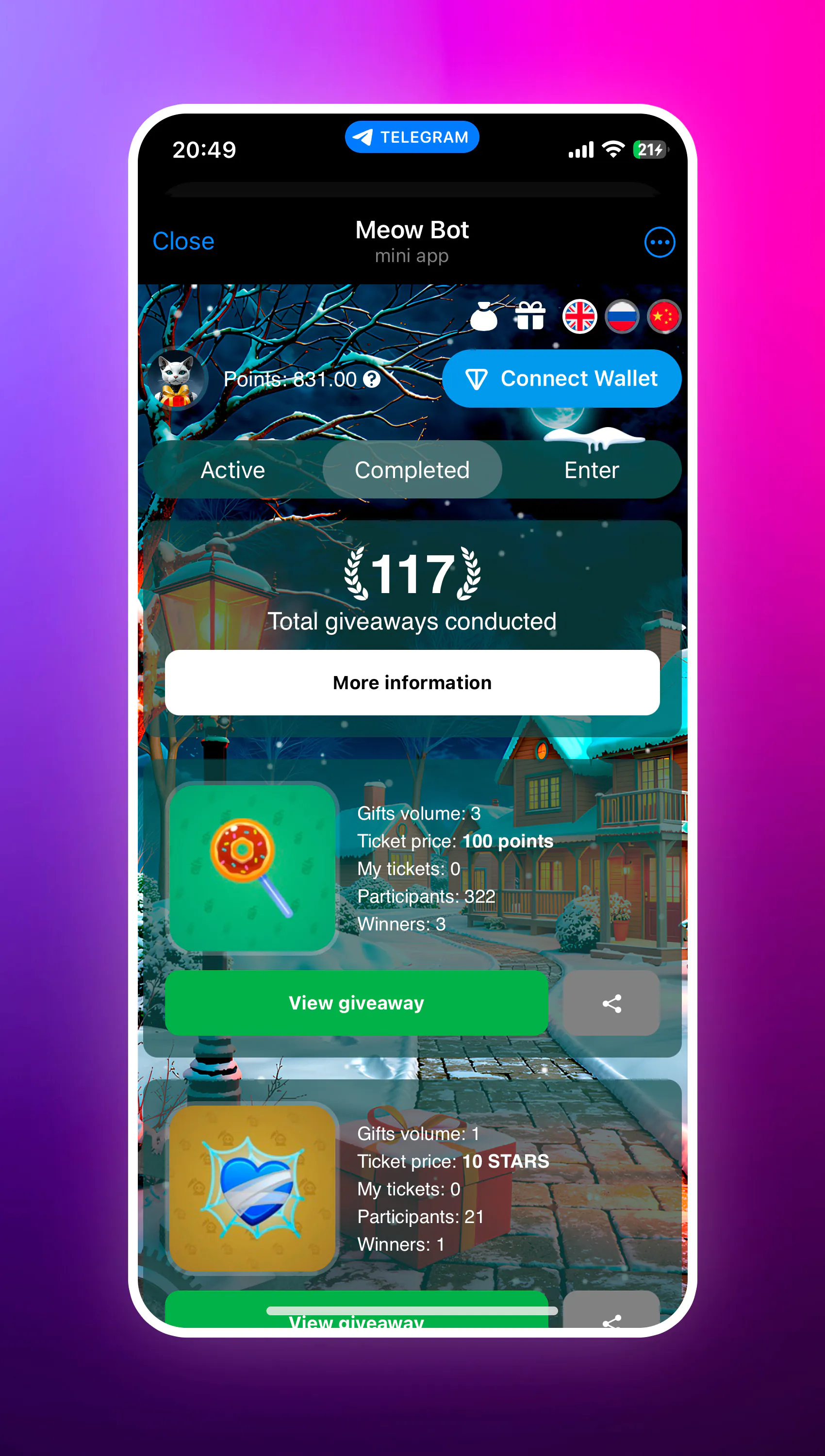
Organize your project with a clear separation of concerns. A standard structure looks like this:
src/: Contains your React/Vue/HTML source code.public/: Holds static assets likeindex.htmland icons.server/: (Optional) Backend code to validate user data.
Create a basic index.html in the public folder. This file will serve as the entry point for your Mini App when Telegram loads it.
With the environment ready, you can begin building the UI. The next step is creating the frontend interface that users will interact with.
Integrate the Telegram WebApp SDK
To give your mini-app access to native Telegram features, you must load the official JavaScript SDK. This script enables platform-specific behaviors like dynamic theming, safe area handling, and direct communication with the Telegram client.
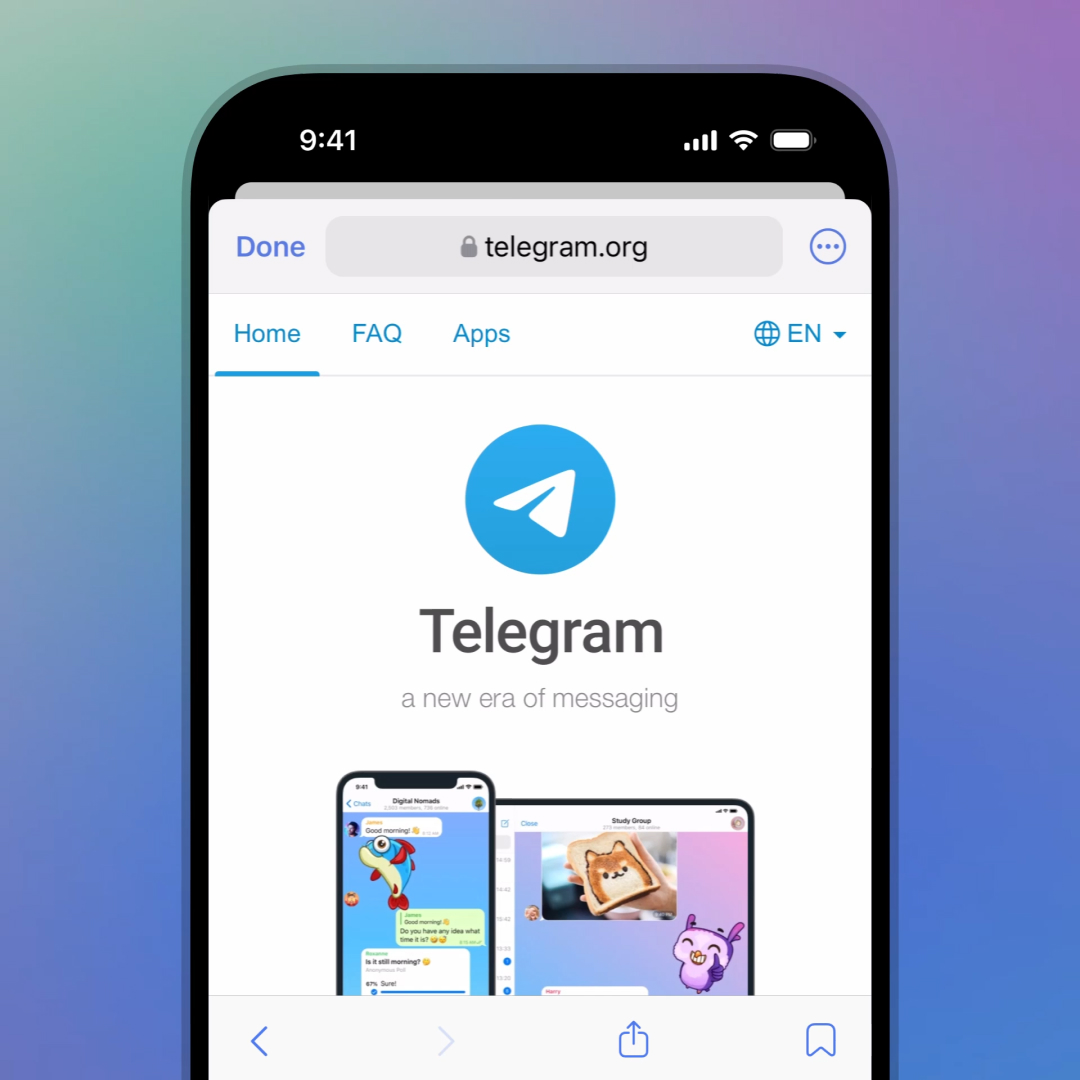
Include the official SDK script in your HTML file. This single import provides the window.Telegram.WebApp object, which is the primary interface for all Telegram-specific functionality.
<script src="https://telegram.org/js/telegram-web-app.js"></script>
Once the script loads, the SDK automatically initializes the window.Telegram.WebApp object. You do not need to call a constructor. Instead, you can immediately access properties and methods to configure the app's behavior.
// Access the WebApp instance
const tg = window.Telegram.WebApp;

// Expand the app to fill the available viewport
tg.expand();
The SDK automatically applies the user’s current Telegram theme. You can read these colors to style your CSS variables, ensuring your app matches the user’s preference for light or dark mode.
const tg = window.Telegram.WebApp;

// Read theme parameters from the Telegram client
const headerColor = tg.headerColor || 'black';
const backgroundColor = tg.backgroundColor || 'white';

// Apply to CSS variables
document.documentElement.style.setProperty('--tg-theme-header-bg-color', headerColor);
document.documentElement.style.setProperty('--tg-theme-bg-color', backgroundColor);
Telegram passes initialization data to your app via the initData string. You can parse this data to identify the user or verify the request’s integrity on your backend server. This is essential for secure authentication without a separate login flow.
const tg = window.Telegram.WebApp;

// Check if data exists
if (tg.initData) {
  console.log('User ID:', tg.initDataUnsafe?.user?.id);
  console.log('Raw auth data:', tg.initData);
}
With the SDK integrated, your mini-app can now interact with the Telegram environment. The next step is to build the user interface using these native components.
Connect TON blockchain wallets
Connecting a wallet is the bridge between your Telegram mini-app and the TON blockchain. Instead of asking users to manage private keys or seed phrases, you use TonConnect UI to handle authentication and transaction signing securely within the Telegram environment. This approach keeps the user experience smooth while ensuring cryptographic security.
1. Initialize the TonConnect SDK
Start by installing the @tonconnect/ui package. This library provides the pre-built UI components and the underlying logic to interact with TON wallets. Import the TonConnectUI class and instantiate it with your app’s manifestUrl. This manifest is a JSON file hosted on your server that tells the wallet what your app is, its name, and its URL. Without a valid manifest, wallet apps will reject the connection request.
2. Handle Connection Events
Once initialized, you need to listen for connection state changes. Users may connect, disconnect, or switch wallets during their session. Use the statusChanges observable to react to these events. When a user connects, store their public address in your app’s state. This address becomes the unique identifier for their on-chain identity within your mini-app. If they disconnect, clear the local state to prevent stale data.
3. Render the Wallet Button
TonConnect UI provides a ready-made <TonConnectButton /> component. Drop this into your app’s header or main navigation. It automatically handles the UI for connecting, displaying the connected wallet’s name, and allowing disconnection. This component adapts to the Telegram theme, ensuring it looks native to the platform. You don’t need to build custom modal dialogs or handle deep-linking logic yourself.
4. Request Transactions
When your app needs to perform an on-chain action, such as transferring TON or interacting with a smart contract, use the tonconnect.sendTransaction method. Construct a Transaction object with the required validUntil, messages (including address, amount, and stateInit if needed), and from address. Wrap this in a try-catch block to handle user rejections or network errors gracefully. The connected wallet will then prompt the user to review and sign the transaction.
import { TonConnectUI } from '@tonconnect/ui';

const tonConnectUI = new TonConnectUI({
  manifestUrl: 'https://your-domain.com/tonconnect-manifest.json',
});

// Check if already connected
const isConnected = await tonConnectUI.connected;

// Send a transaction
const transaction = {
  validUntil: Math.floor(Date.now() / 1000) + 60, // 60 seconds
  messages: [
    {
      address: '0QD...',
      amount: '1000000000', // 1 TON in nanotons
    },
  ],
};

try {
  const result = await tonConnectUI.sendTransaction(transaction);
  console.log('Transaction sent:', result);
} catch (error) {
  console.error('Transaction rejected or failed:', error);
}
5. Manage Wallet Disconnections
Always provide a clear way for users to disconnect. While the <TonConnectButton /> handles this visually, ensure your app’s logic respects the disconnection event. Clear any cached wallet data and redirect the user to a login or home screen if their session was dependent on that wallet. This prevents confusion if they switch devices or clear their Telegram cache.
6. Test Across Multiple Wallets
TON has several popular wallets, including Tonkeeper, OpenMask, and Wallet. Test your connection flow in each to ensure compatibility. Some wallets may have slightly different UI behaviors or permission prompts. Verify that transaction signing works correctly in all supported environments before launching your mini-app.
Compare hosting and deployment options
Choosing where to host your Telegram Mini App depends on your app's complexity and your team's infrastructure comfort. Static hosting is ideal for simple, client-side applications, while server-side rendering or custom VPS solutions are necessary for complex logic, real-time data, or heavy backend integration.
The table below compares the three most common deployment strategies: Vercel, Netlify, and a custom VPS. Use this to decide which fits your current development stage.
| Feature | Vercel | Netlify | Custom VPS |
|---|---|---|---|
| Best For | Static sites, serverless functions | Static sites, simple APIs | Complex backends, real-time apps |
| Setup Time | Minutes | Minutes | Hours to days |
| Cost | Free tier generous | Free tier generous | Monthly fee ($5+) |
| Custom Domain | Supported | Supported | Supported |
| CI/CD | Automatic on push | Automatic on push | Manual or scripted |
| Backend Control | Serverless functions only | Netlify Functions only | Full root access |
For most developers starting with a Telegram Mini App, Vercel or Netlify provides the fastest path to production. Both platforms offer automatic deployments from Git repositories, free SSL certificates, and global CDN distribution. This reduces the operational overhead significantly, allowing you to focus on the app's user experience rather than server maintenance.
If your app requires persistent WebSocket connections, heavy database operations, or custom middleware that doesn't fit into serverless functions, a custom VPS becomes the better choice. While this option requires more initial configuration, it offers complete control over the environment and scales more predictably for high-traffic, compute-intensive tasks.
Implement user retention mechanics
Retention turns casual testers into daily users. You achieve this by removing friction during re-entry, rewarding continued interaction, and delivering timely reminders. Focus on these three pillars: deep linking, gamification, and push notifications.
Streamline re-entry with deep links
Most users leave a Mini App after their first session. Your goal is to make returning as easy as opening a chat. Use deep links to send users directly to the specific screen they were viewing or the feature they intended to use. This eliminates the "where was I?" confusion and reduces drop-off.
Gamify the experience
Gamification drives habit formation. Implement simple mechanics like daily check-in streaks, progress bars, or point systems that reward consistent usage. These features give users a reason to return even when they don’t have an immediate task. For example, a fitness tracker Mini App might show a weekly activity ring that resets every Monday, encouraging users to open the app daily to update their status.
Trigger push notifications wisely
Push notifications are powerful but easily ignored. Use them to deliver high-value updates, such as order confirmations, event reminders, or personalized tips. Avoid generic marketing blasts. Instead, trigger notifications based on user behavior, such as reminding them to complete a pending action or congratulating them on a milestone. This relevance ensures your notifications are seen as helpful rather than intrusive.
Test across Telegram clients
Before launching your Telegram Mini App, verify it works on iOS, Android, and Desktop. Telegram’s ecosystem is fragmented; a layout that fits perfectly on a mobile screen may break on the desktop sidebar or get truncated on older Android versions.
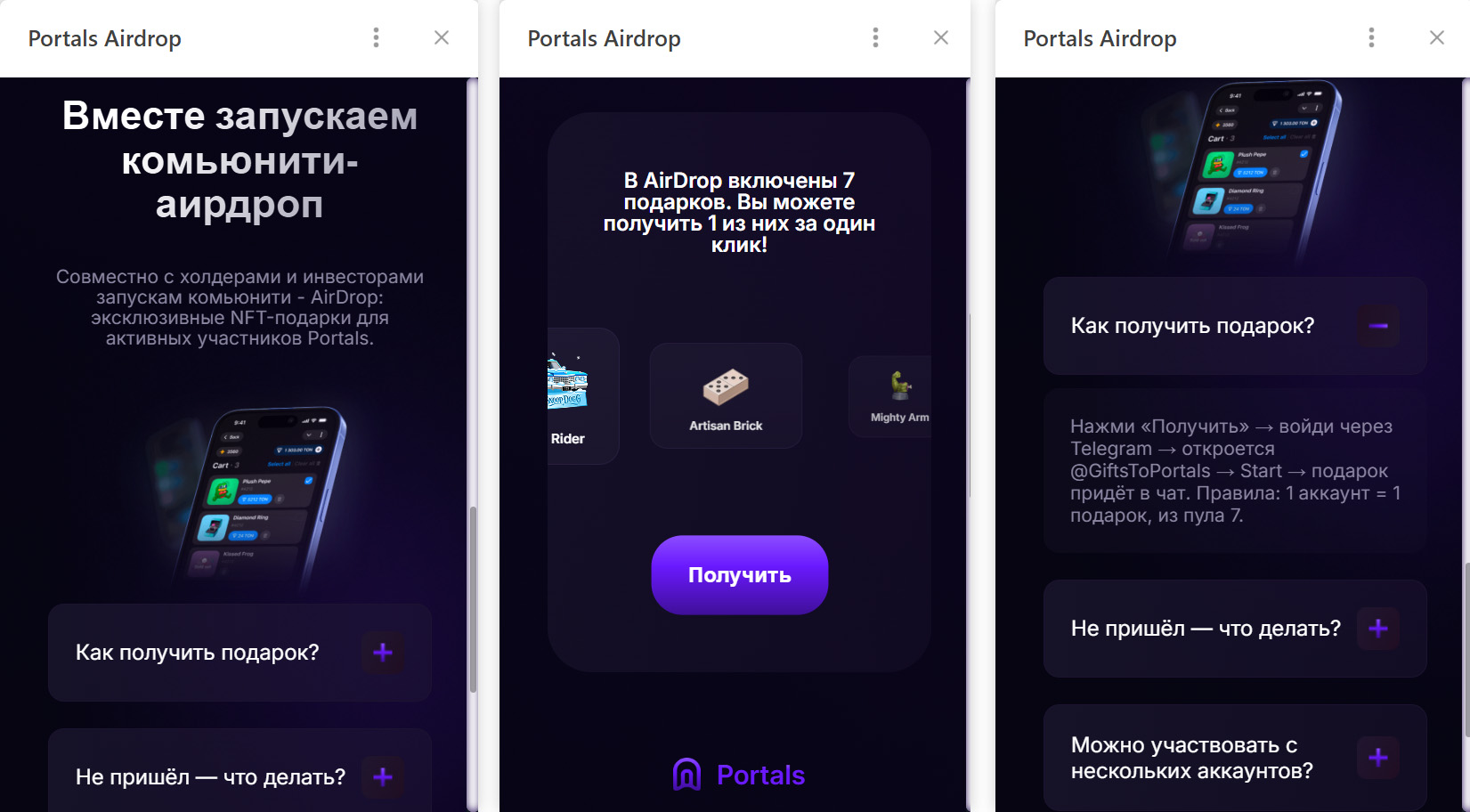
Start with iOS. Apple’s rendering engine is strict, and UI components often behave differently here than on Android. Check touch targets, font scaling, and gesture handling. If your app uses native Telegram UI kits, ensure they render correctly within the iOS WebView constraints.
Move to Android. Focus on the viewport height and keyboard interaction. Android’s on-screen keyboard often pushes content up unexpectedly. Ensure your app’s main content area scrolls correctly when the keyboard appears and that no critical buttons are hidden behind it.
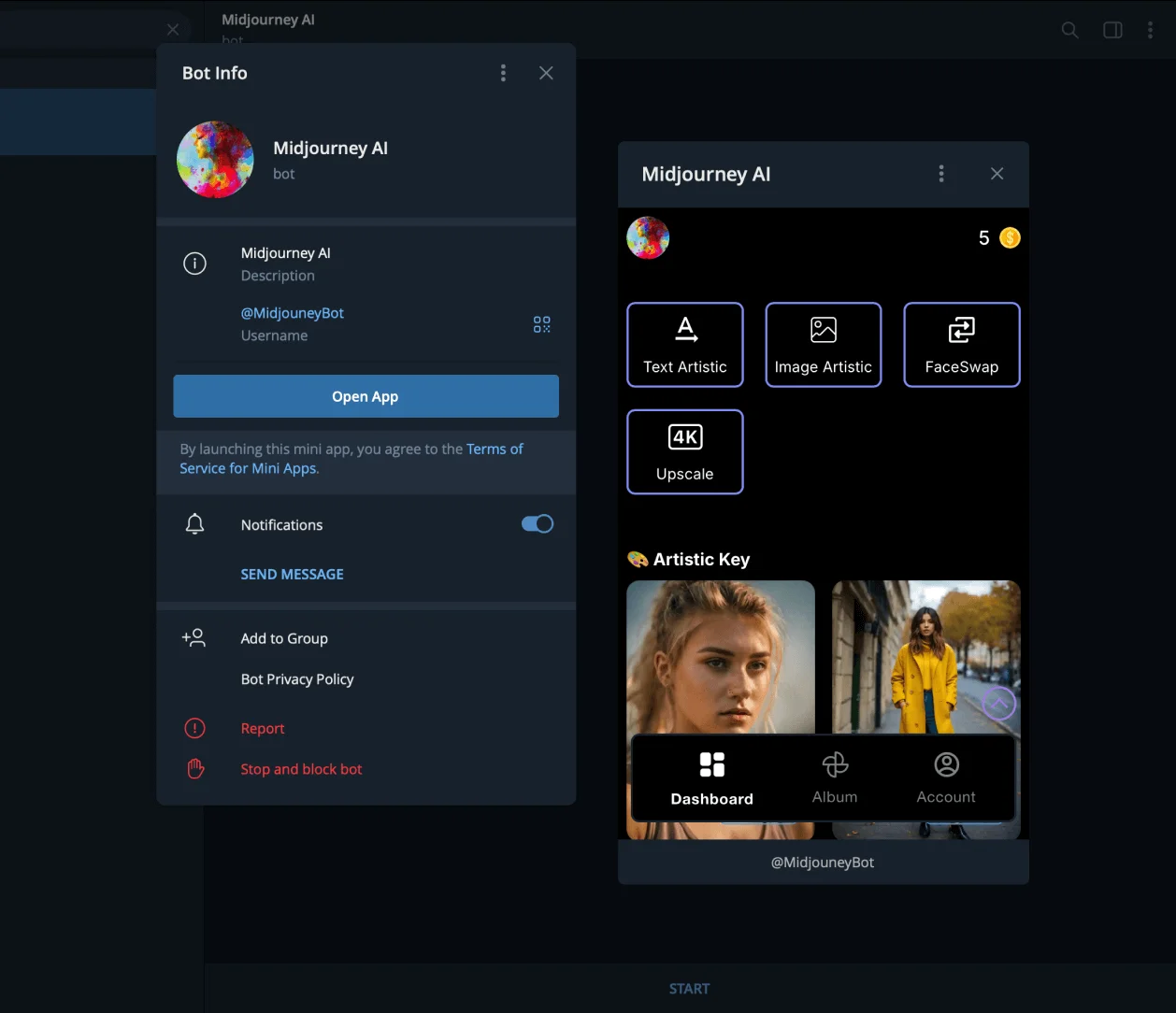
Test on the Desktop client. Mini Apps open in a side panel or pop-up window on desktop. Verify that your layout adapts to the narrower side panel width and that mouse interactions (hover states, right-click) do not break the experience. Ensure the app doesn’t overflow the container.
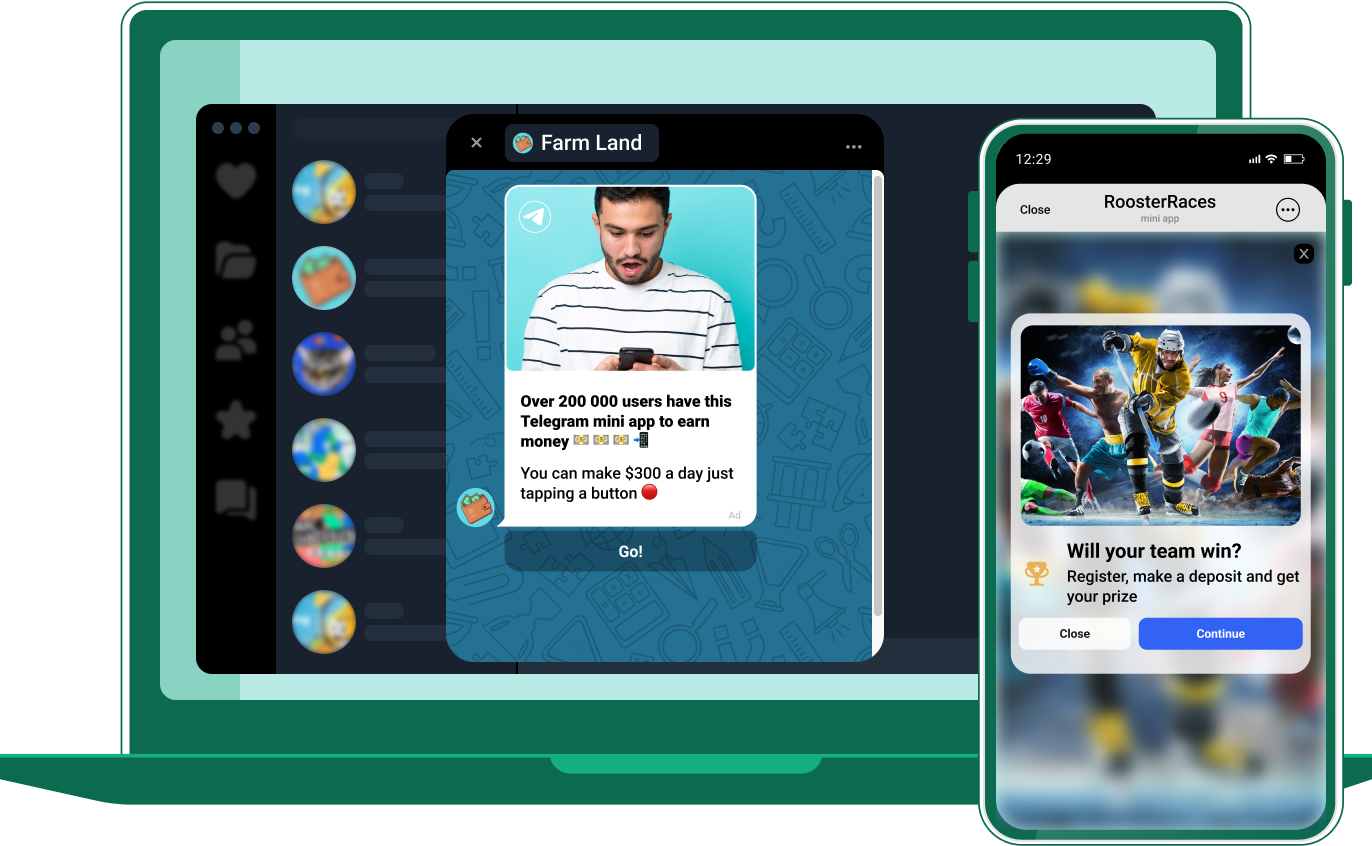
Confirm all launch paths work. Telegram supports seven launch methods: profile buttons, keyboard buttons, inline buttons, and direct links. Test each entry point to ensure the initData string is correctly parsed and the app initializes without errors regardless of how the user entered.
Verify your build with a checklist
Before you publish your Telegram Mini App, run through this verification list to ensure security, performance, and UX standards are met. This final pre-launch check catches common issues that could degrade user trust or break functionality.
Each item on this checklist addresses a critical aspect of your Telegram Mini App's readiness. Skipping any of these steps could result in a poor user experience or security vulnerabilities. Take the time to thoroughly test each component before making your app available to users.
Common questions about Telegram mini-apps
Developers and business owners often ask how Telegram mini-apps fit into their technical and financial planning. Here are the answers to the most frequent questions regarding development costs, monetization, and platform limits.
How much does it cost to build a Telegram mini-app?
Development costs vary based on complexity. A basic informational mini-app can be built in weeks using standard web technologies, keeping initial costs low. More complex apps with Web3 integration or heavy real-time data require more engineering hours. As noted by industry guides, the ability to ship in weeks rather than months significantly reduces customer acquisition costs compared to native mobile apps.
Can I monetize a Telegram mini-app?
Yes. You can integrate payment providers like Stripe or Telegram’s native Stars for digital goods. Many successful apps use a freemium model where basic features are free, but advanced functionality requires a subscription. Since users don’t need to download a separate app, conversion rates often improve due to the reduced friction in the user journey.
What are the technical limits of a Telegram mini-app?
Mini-apps run in a WebView, so they are subject to browser sandboxing rules. There is no hard file size limit for the web bundle, but performance depends on loading speed within the Telegram client. You can access native device features like the camera or location only through the Telegram WebApp API, which provides a secure bridge between your web code and the Telegram client.
No comments yet. Be the first to share your thoughts!